Windows 10’s Sunset and the Windows 11 Upgrade Path: What You Need to Know
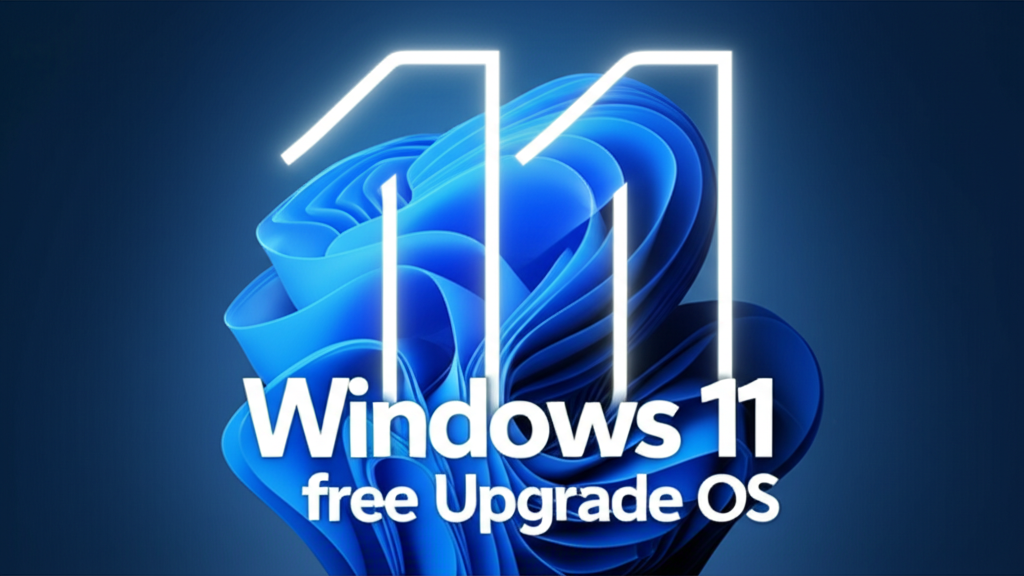
Windows 10 support has ended on October 14, 2025, is Windows 11 a free upgrade? This is a critical question facing millions of PC users worldwide as the deadline for Microsoft’s long-standing operating system rapidly approaches. The end of support for Windows 10 signals a significant transition, pushing users to consider their options for security, functionality, and the future of their computing experience. Understanding what this means for your device and whether the leap to Windows 11 will cost you anything is paramount for making an informed decision.
Windows 10 End of Support: What It Means for You
The official end of life (EOL) for Windows 10, version 22H2, is set for October 14, 2025. This date marks the cessation of regular, free security updates, non-security updates, and assisted support. For nearly a decade, Windows 10 has been a reliable workhorse, but like all software, it has a lifecycle. Once this date passes, your Windows 10 PC will continue to function, but it will become increasingly vulnerable to security threats. New malware, viruses, and exploits are constantly emerging, and without Microsoft’s patches, your system could become a prime target.
Beyond security, you’ll also miss out on new features and performance improvements that are exclusive to Windows 11. Software developers may eventually drop support for Windows 10, leading to compatibility issues with newer applications. While some users might consider sticking with Windows 10, the risks associated with an unsupported operating system generally outweigh any perceived benefits, especially for those who handle sensitive information or frequently browse the internet.
Is Windows 11 a Free Upgrade? Unpacking the Costs (or Lack Thereof)
The good news for many users is that, yes, Windows 11 is available as a free upgrade for eligible Windows 10 PCs. Microsoft made the upgrade free to encourage broad adoption and streamline their operating system portfolio. This means you won’t have to purchase a new license key if your existing Windows 10 system meets the specific hardware requirements. The upgrade typically occurs through Windows Update, making the process straightforward for supported devices.
However, “eligible” is the key word here. The free upgrade isn’t Universal. Unlike previous transitions where hardware requirements were often more lenient, Windows 11 introduced stricter minimum specifications. These requirements are primarily focused on enhancing security and performance, but they also mean that some older, yet still functional, PCs might not qualify.
The main requirements include:
- Processor: 1 GHz or faster with 2 or more cores on a compatible 64-bit processor or System on a Chip (SoC).
- RAM: 4 GB.
- Storage: 64 GB or larger storage device.
- System Firmware: UEFI, Secure Boot capable.
- TPM: Trusted Platform Module (TPM) version 2.0.
- Graphics Card: Compatible with DirectX 12 or later with WDDM 2.0 driver.
- Display: High definition (720p) display that is greater than 9 inches diagonally, 8 bits per color channel.
- Internet connection and Microsoft account: Required for initial setup and for some features.
The TPM 2.0 requirement, in particular, has often been a stumbling block for older machines.
Checking Your System: Hardware Compatibility Matters
Before you plan your upgrade, the first crucial step is to determine if your current Windows 10 PC is compatible with Windows 11. Microsoft provides a convenient tool called the PC Health Check app for this very purpose. You can download it directly from Microsoft’s website.
Once installed and run, the app will scan your system and provide a clear pass or fail verdict. If your PC meets all the requirements, it will inform you that your device is ready for the upgrade. If it doesn’t, the app will typically highlight which specific component (e.g., TPM, CPU) falls short.
- If your PC is compatible: You can proceed with confidence, knowing the free upgrade path is open to you.
- If your PC is not compatible: You have a few options:
- You can continue to use Windows 10 until October 14, 2025, understanding the security risks thereafter.
- You could purchase a new PC that comes pre-loaded with Windows 11.
- For commercial users, Microsoft offers an Extended Security Updates (ESU) program for Windows 10, providing up to three years of paid security updates. This is primarily aimed at organizations that cannot upgrade their hardware immediately.
The Upgrade Process: What to Expect
If your PC is compatible, the upgrade to Windows 11 is generally a straightforward process. It will be delivered through Windows Update, just like regular monthly updates.
- Backup Your Data: While the upgrade usually preserves your files, it’s always wise to back up your important documents, photos, and other data to an external drive or cloud service before starting.
- Check for Updates: Make sure your Windows 10 is fully updated before attempting the Windows 11 upgrade.
- Initiate Upgrade: When the Windows 11 upgrade becomes available for your device, you’ll see a notification in Windows Update. Follow the on-screen prompts.
- Installation and Restart: The process involves downloading the new operating system files, installing them, and multiple restarts. This can take anywhere from 30 minutes to a few hours, depending on your internet speed and PC specifications.
- First Boot and Setup: After the final restart, you’ll be guided through a brief setup process to personalize your Windows 11 experience.
Beyond the Upgrade: Why Move to Windows 11?
Moving to Windows 11 offers several advantages beyond just continued security updates. Microsoft redesigned the user interface with a sleek, modern look, centered Start menu, and rounded corners, creating a fresh and intuitive experience.
Key features and improvements include:
- Revamped User Interface: A cleaner, more consistent design language.
- Snap Layouts and Groups: Enhanced multitasking capabilities to organize windows more effectively.
- Widgets: A personalized feed of information and content.
- Microsoft Teams Integration: Built directly into the taskbar for easier communication.
- Android App Support: (Requiring Amazon Appstore) Expanding the ecosystem of available applications.
- Gaming Enhancements: Features like Auto HDR and DirectStorage (on compatible hardware) for a superior gaming experience.
Conclusion
The October 14, 2025, end-of-support date for Windows 10 is a clear call to action for users. While the prospect of upgrading might seem daunting, the good news is that for many, Windows 11 is a free and relatively seamless upgrade. The critical first step is to check your PC’s compatibility. If your hardware meets the requirements, embracing Windows 11 will provide you with a more secure, modern, and feature-rich computing experience, ensuring you stay protected and productive well into the future. Don’t wait until the last minute – start planning your upgrade path today.